The downloads screen
The downloads screen, titled “Downloads”, is where a download is started, resumed, recovered, or restored. This page names each part of it and each message it can show. For the tasks themselves, see Your first download, Resume an interrupted download, and Restore a download you opened in singleplayer.
Opening it
Section titled “Opening it”Three routes open the screen:
- The “Download This World” button in the pause menu. A small “…” button sits beside it, reads “Settings” on hover, and opens the settings screen instead.
- The “Open Downloads Screen” keybind, which ships unbound.
- The
/wdl downloadscommand, which opens the screen with the existing-worlds list already expanded. The other two open it with the list as you last left it.
The pause-menu button appears only on a multiplayer server or in a replay, not in your own local world. While a download is running that button reads “Stop Download” and stops the download rather than opening this screen, and while the download is saving it reads “Saving…” and does nothing. See Commands and keybinds.
In a replay with playback paused, the pause-menu button is the only route that works. The keybind and the command both wait for the next game tick, which pausing suspends. See Download from a replay.
Opening the screen also finishes any cleanup a previous restore left behind. That is why it can switch to the “Cleaning up an earlier restore” state a moment after you open it.
Done closes the screen in every state, and so does Esc.
Starting a new download
Section titled “Starting a new download”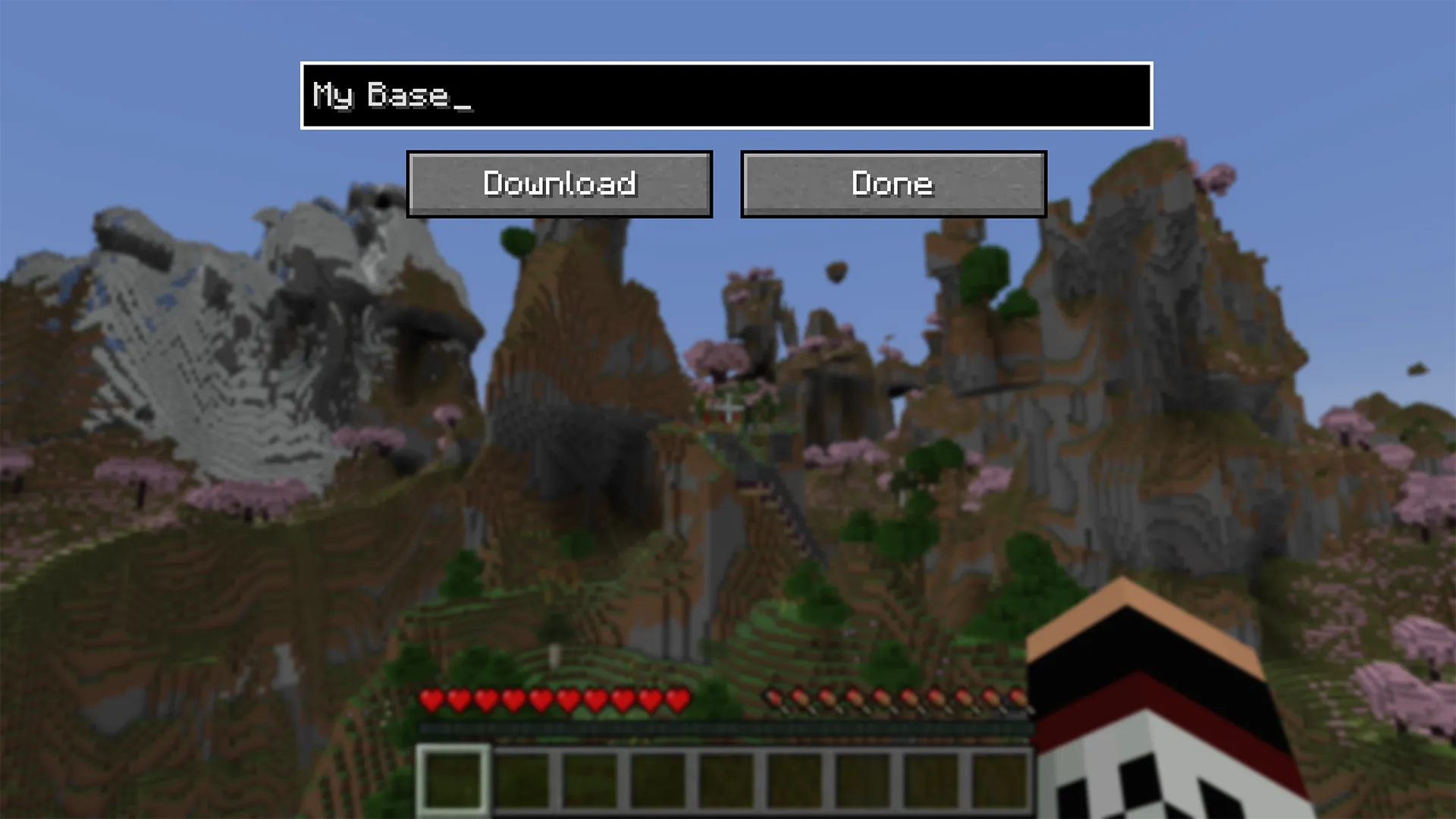
| Part | What it does |
|---|---|
| The name field | The name for a new download. It becomes the save folder’s name, plus a date by default. Press Enter to start. |
| “Download” | Starts a new download under the typed name. It stays disabled until the name is usable, with the tooltip Type a name for the download first. A name made only of characters that cannot go in a folder name leaves it disabled too. |
| “Open Saves Folder” | Opens your saves folder in your operating system’s file browser. Changes nothing. It sits beside the “Existing Worlds” header, so neither appears until you have at least one download. |
| “Some content excluded” | A caution line below the Download button, shown when “Entities” or “Containers” is off. Its tooltip reads Some content toggles are off, so this download will be missing that content. Change them in Settings. The download still runs. |
| Update notice | A line offering a newer release when one exists, with links to its Modrinth and CurseForge pages and a control to dismiss it. It appears in every state of the screen. Turned off by “Check for Updates on Startup”, and unaffected by “Show Chat Messages”. |
While a download runs
Section titled “While a download runs”The screen swaps its contents to match what the mod is doing. It follows a download you started from the keybind or a command just the same.
| State | What the screen shows |
|---|---|
| Recording | A “Downloading <name>” label in place of the name field, and “Stop” as the main action. |
| Saving | A disabled “Saving…” label. |
| Restoring | A “Restoring <name>…” label, or “Cleaning up an earlier restore…”, and nothing else but Done. The name field, the list, and the links are all hidden until the disk work finishes. |
Existing downloads
Section titled “Existing downloads”“Existing Worlds (N)” expands the list of downloads the mod manages in your saves folder, most recently played first. The list starts collapsed, and it remembers whether you expanded it for the rest of the game session.
Selecting a row fills the name field with its folder name and retargets the main action to “Resume”. Typing in the name field again drops the selection and puts the action back to “Download”.
What a row shows
Section titled “What a row shows”Each row shows the world’s icon, its name without the date suffix, and when it was last played. Below that sits its content summary, and at the right either its size or a chip in place of the size.
The size is measured from disk in the background, so it fills in shortly after a row appears. It is shown only for a download that finished cleanly. A resumed download shows its total chunk count with a dash for entities and containers, because no running total of those two is kept across sessions.
The ⬈ at the right of a row opens that download’s own folder in your file browser. Hovering it shows the folder’s name, and the mod and Minecraft versions you are currently running.
Chips on a row
Section titled “Chips on a row”| Chip | What it means |
|---|---|
| “Partial” | The download finished but lost some content to a write failure. The row keeps its summary; the chip stands in for the size. Hovering it reads Download incomplete. See Resume an interrupted download. |
| “⟲ Recover” | The download has no usable completion record: either none was written, or a crash or a kill left its marker behind. Clicking the chip resumes that download in one click, with the same confirmations as “Resume”. Such a row shows no summary, because none would be reliable. |
| “Singleplayer” | The world was opened in singleplayer, so it may hold generated, non-server chunks. Resuming it is blocked by default. Hovering it explains what that means, and tells you to start a fresh download when no clean backup exists. |
| “⟲ Restore” | Shown beside “Singleplayer” when a clean backup of that world exists, and never on the world you currently have open. It replaces the folder with that backup. Hovering it names the backup it would use. The mod looks for the backup when the row first appears, so this chip can show up a moment later than the rest of the row. See Restore a download you opened in singleplayer. |
A “Singleplayer” row shows no other chip. That chip takes precedence over Partial and Recover.
Partial and Recover never block a resume. Both rows resume by selecting them and clicking “Resume”, the same as a complete one, and Recover is only a shortcut for doing that. Two things do block a resume: a “Singleplayer” row, which is blocked by default, and the world you currently have open.

Confirmations
Section titled “Confirmations”Five confirmations can open from this screen. Three of them belong to starting or resuming a download, and each states what will happen and changes nothing until you accept.
| Title | When it opens |
|---|---|
| “Existing world found” | A resume into an existing folder, which merges into it rather than overwriting. You reach it either by selecting a row or by typing a name that already exists. Turned off by “Confirm Before Resuming”. |
| “Different map ID scheme” | A resume into a download whose Maps were numbered differently than a new download would number them. It has no off switch: setting “Protect Saved Maps” back to match the folder is what stops it. See Resume an interrupted download. |
| “Opened in singleplayer” | A resume into a world opened in singleplayer, with “Block Singleplayer-Opened Worlds” off. With that setting on, resuming is blocked instead, except when the mod cannot read whether the folder was opened in singleplayer, which always asks. When a clean backup exists, the confirmation also points out that you could Restore instead. |
The remaining two, “Restore from backup” and “Resume blocked”, belong to Restore and are covered in its guide.
When an action is blocked
Section titled “When an action is blocked”The mod refuses an action rather than doing something you did not intend. Each refusal appears as a titled message and changes nothing.
| Title | Message | What to do |
|---|---|---|
| Download blocked | That world is currently open. | Close the world, then try again. |
| Download blocked | Already downloading. | Stop the running download first. |
| Download blocked | Still saving the download. Try again when it’s done. | Wait for the save to finish. |
| Download blocked | Join a multiplayer server to download its world. | Downloads need a server or a replay. |
| Download blocked | Still restoring the download. Try again when it’s done. | Wait for the restore to finish. |
| Download blocked | Still cleaning up an earlier restore. Try again when it’s done. | Wait for the cleanup to finish. |
| Can’t resume | This world was opened in singleplayer and may contain generated (non-server) chunks. Start a fresh download instead of resuming. | Start a fresh download. When a clean backup exists you never see this: the resume offers Restore instead. |
| Name in use | “<name>” is taken by something that isn’t a download. |
Choose another name, or move that folder aside. Typing the name yourself adds that advice to the message. |
| Download missing | The download folder “<name>” no longer exists. |
It was moved or deleted outside the game. |
| Cleanup pending | An earlier restore left unfinished cleanup for that name. Open the Downloads screen to finish it, or wait for the cleanup to complete. | Open this screen, which starts the cleanup. |
| Restore blocked | That world is currently open. Close it and try again. | Close the world, then try again. |
| Restore blocked | The backup file changed on disk. Try the restore again. | Try the restore again. |
| Restore blocked | This download is no longer marked as opened in singleplayer, so there is nothing to restore. | Nothing to restore; the folder is fine as it is. |
| Restore blocked | Couldn’t tell whether this download was opened in singleplayer, so nothing was changed. | Your folder is left as it was. |
| Restore blocked | The safety backup could not be written, so nothing was changed. | Your folder is left as it was; try again. |
| Restore blocked | Not enough disk space to restore. | Free some space, then try again. |
| Restore blocked | The backup could not be unpacked, so nothing was changed. | Your folder is left as it was. |
In every Restore blocked case the folder is left exactly as it was; the check runs again the moment you confirm, so a stale button cannot do the wrong thing. How a restore runs, and the rarer failure partway through one, are covered in Restore a download you opened in singleplayer.
NOT AN OFFICIAL MINECRAFT PRODUCT. NOT APPROVED BY OR ASSOCIATED WITH MOJANG OR MICROSOFT.
These docs reflect the current release of Archive World Downloader.
Text on this site is licensed CC BY-SA 4.0.